How to Check a DXF Before AutoCAD, ET, or CAD Import
Use this practical DXF check before AutoCAD, ET, or another CAD workflow: confirm format, scale, paths, layers, and downstream import behaviour.
Direct answer
A DXF is ready for an AutoCAD, ET, or other CAD workflow only after it opens and passes a workflow-specific review. At minimum, confirm the file version, units, known dimensions, closed geometry, curves, layers, and the objects that the next software or machine actually accepts. Opening a file is an import test, not a production approval.
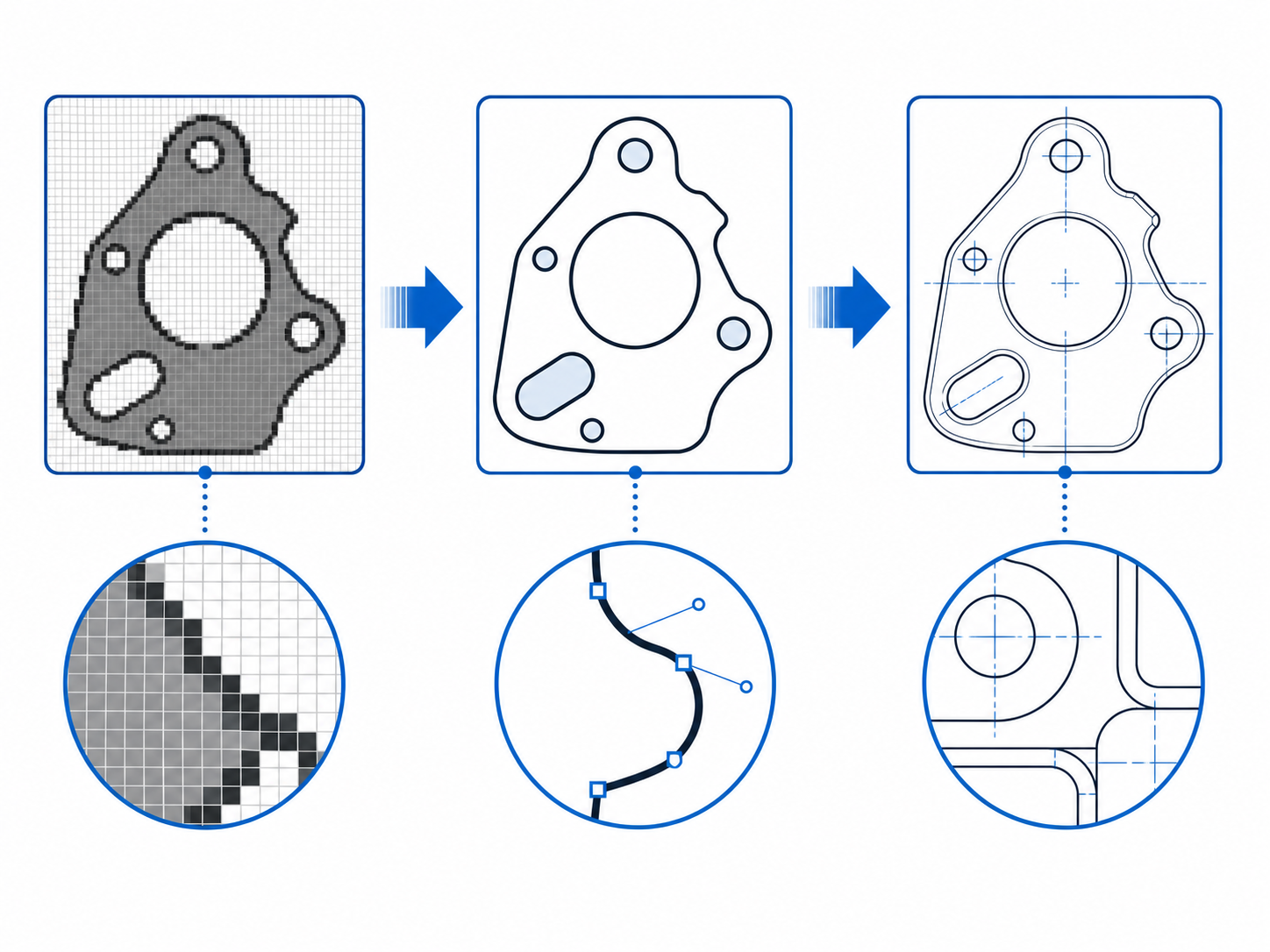
The import checklist
| Check | How to verify it | Why it matters |
|---|---|---|
| DXF version and entities | Read the export report when present and open the file in the target program. | A program can support DXF generally while treating particular entities differently. |
| Units and scale | Measure a feature with a known size in millimetres or inches. | Pixel-derived input has no trustworthy production scale without calibration. |
| Closed contours | Select each contour and inspect joins, gaps, overlaps, and self-intersections. | Open or duplicated paths can break nesting, cutting, and pattern workflows. |
| Curves and node density | Zoom into arcs, smooth curves, corners, and small details. | A visual match at a distance can hide rough curves or unnecessary nodes. |
| Layers and non-cut geometry | Isolate layers and remove guides, text, dimensions, or accidental geometry. | Downstream tools may interpret every visible path as usable geometry. |
| Target workflow behaviour | Reopen, save a test copy, or run the intended import dialogue. | The destination decides whether a file is useful, not the extension alone. |
ET apparel workflow: additional checks
For the DXFTool ET2022 workflow, the preferred package is reviewed through the standard DXF/AAMA import path in millimetres and TP1 mode. A generic closed-contour fallback uses millimetres with ACAD mode. In either path, compare the imported pieces against the source and review piece count, names, grainlines, dimensions, and any inferred metadata.
Do not treat a downloaded file as a finished production pattern. The documented delivery boundary is an importable, inspectable, editable DXF draft; physical calibration and patternmaker review remain necessary for production sizing and construction decisions.
If you are digitizing a scanned sewing pattern, use the scan-to-ET DXF workflow after confirming at least one physical dimension. It keeps the source, scale, output, and QA evidence together for review; it does not replace patternmaker approval.
Four practical steps
- Open the DXF in the actual destination, not only in a previewer.
- Measure one known distance, then inspect every contour at close zoom.
- Confirm closed geometry, layers, and object count match the intended job.
- Save or import a test copy and record the software version, import option, and issues found.
Start with the Image to DXF converter, JPG to DXF, PNG to DXF, or SVG to DXF according to the source. Read JPG, PNG, and SVG to DXF first if the input format is still uncertain.
Sources and method
DXF exchange and version behaviour: Autodesk, About Importing and Exporting DXF Files and Drawing file format compatibility. ET-specific steps reflect DXFTool's documented ET2022 import workflow and are not a blanket certification of other ET versions. Sources checked 2026-08-03.
DXF import check FAQ
If AutoCAD opens the DXF, is it compatible?
It proves the file can open in that environment, not that its units, layers, curves, closed paths, annotations, or downstream machine requirements are correct.
What is the first thing to check after an image-to-DXF conversion?
Check the physical scale against a known measurement. Image pixels do not reliably contain the intended physical dimensions.
What should apparel users review in ET?
Review each pattern piece, piece count, closed contour, millimetre scale, piece name, grainline, and any inferred metadata before continuing to production work.