
DXFTool Staging

DXFTool Staging

Convert images and vectors to DXF online

Choose the converter that matches your source file. Upload JPG, PNG, WebP, or SVG, create a reviewable DXF draft, then inspect scale and geometry in your CAD workflow.

JPG, PNG, WebP, and SVGFailed jobs refundedQA report included

Image and vector to DXF

From visible contours to reviewable DXF geometry

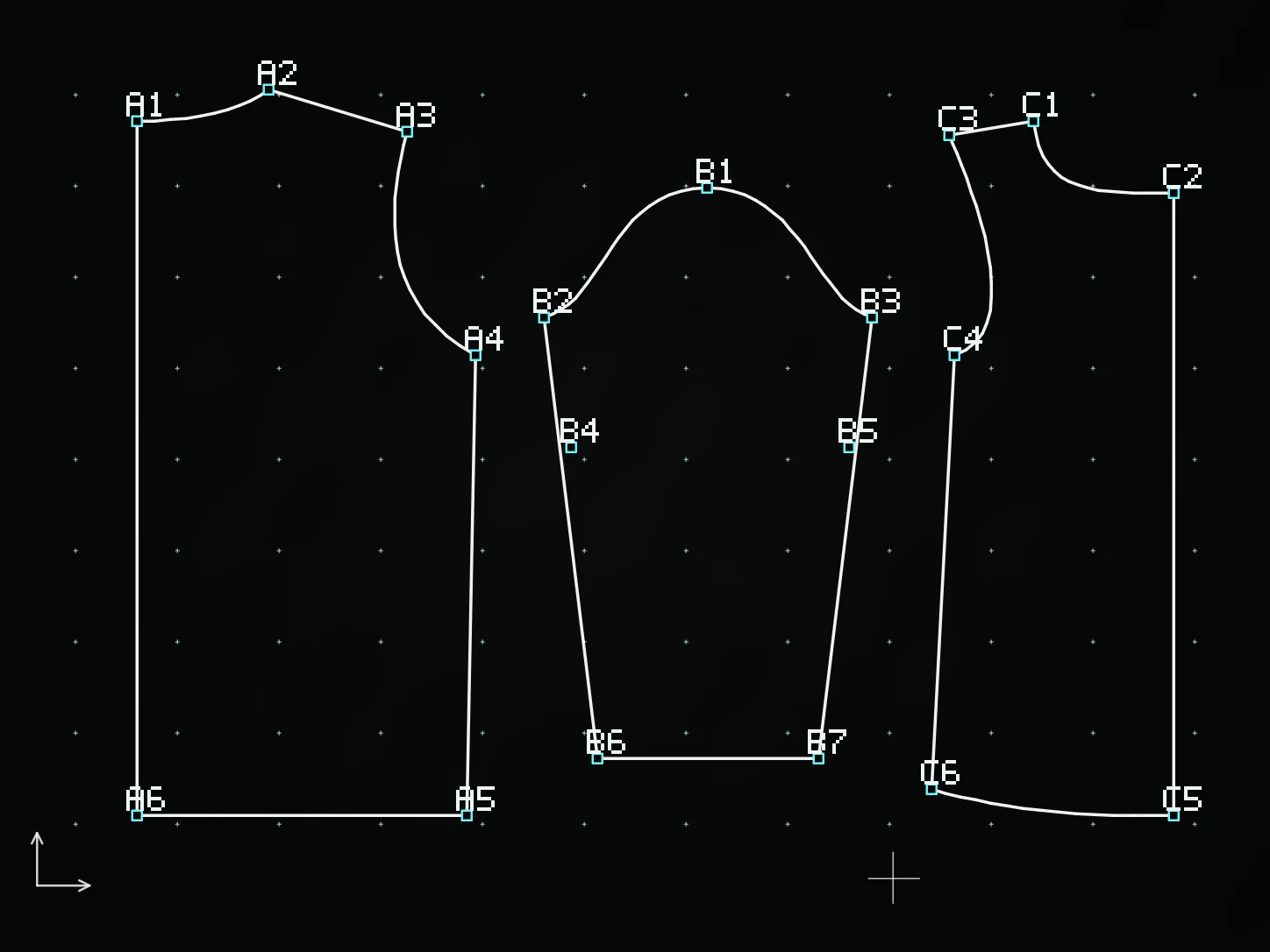
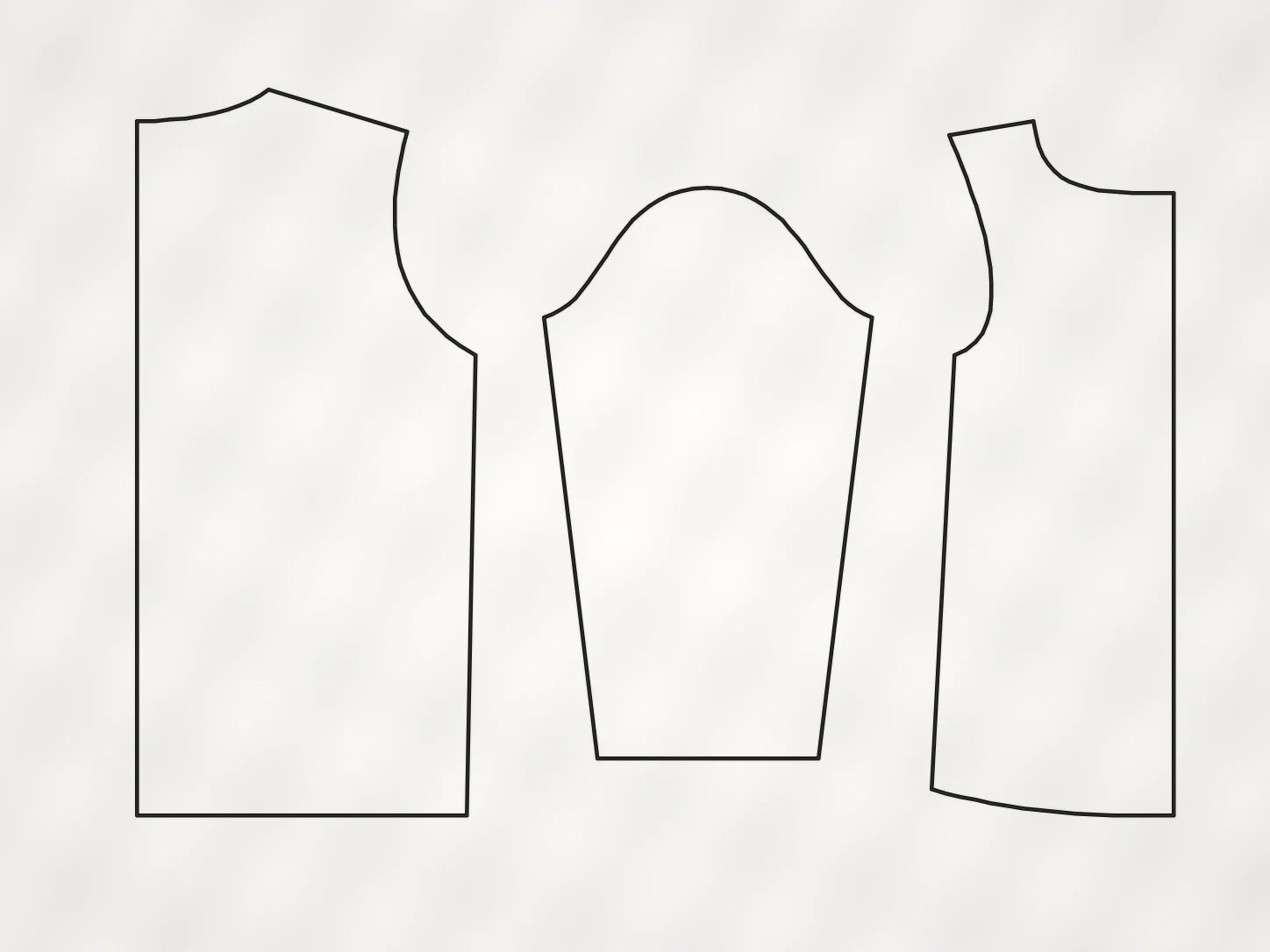
Upload a clean image or SVG, create a DXF draft, then inspect the geometry in your own software. This illustration explains the workflow and does not guarantee identical results for every source file.

Source artwork
DXF geometry preview
Verify in your software

Open and inspect

Open the exported DXF in your CAD software and review paths, curves, closed shapes, scale, and layer behavior.

Illustration only; not a customer case study or accuracy claim.

Convert a source file to DXF in three steps

Start with a clean JPG, PNG, WebP, or SVG, generate a DXF draft, then validate the exported geometry in your own workflow.

01

Choose the matching converter

Use the Image, PNG, JPG, or SVG page so the upload rules and guidance match the file you have.

02

Create the DXF draft

Choose the available DXF workflow and let the converter prepare the output, preview, and QA information.

03

Download and review

Download the generic ACAD DXF or available DXF artifact, then verify paths and geometry in your software.

Best suited today

Clean edges, simple shapes, and visible contours are easier to inspect after conversion.

  • High-contrast JPG or PNG line drawings, logos, templates, and diagrams
  • SVG files with editable paths, shapes, and curves
  • A source file you can compare against after opening the DXF

Use with caution

These source characteristics may need extra cleanup or manual checking after export.

  • Full-color photos with texture, shadows, blur, or background clutter
  • Complex SVG masks, filters, effects, live text, or overlapping artwork
  • Dimensions, layers, or manufacturing details that must remain exact downstream

Start with one source file

Test the conversion before scaling up

Use the trial credits for a real JPG, PNG, WebP, or SVG, inspect the DXF in your software, then add fixed credit packs when the workflow fits your use case.

The page shows the current credit cost. Explicitly failed conversions are automatically refunded.

Beta

New to the DXF format?

Learn what a DXF file stores, where it is used, how it differs from raster and vector image formats, and what to check after conversion.

Read the DXF guide

Conversion tool selector

What do you need to convert?

Start with the file you already have. Use a dedicated Image, PNG, JPG, or SVG entry so the upload rules, examples, and conversion limits match your source.

If you are unsure, start from the source format: use the dedicated PNG, JPG, or SVG page; use the general Image to DXF page for mixed inputs.

Frequently asked questions

Supported image formats, DXF output, credits, and geometry review.

Test one file in your own CAD workflow

Convert a real image or SVG to a DXF draft, then inspect the paths and geometry in the software you actually use. Real compatibility matters more than an unverified export claim.