
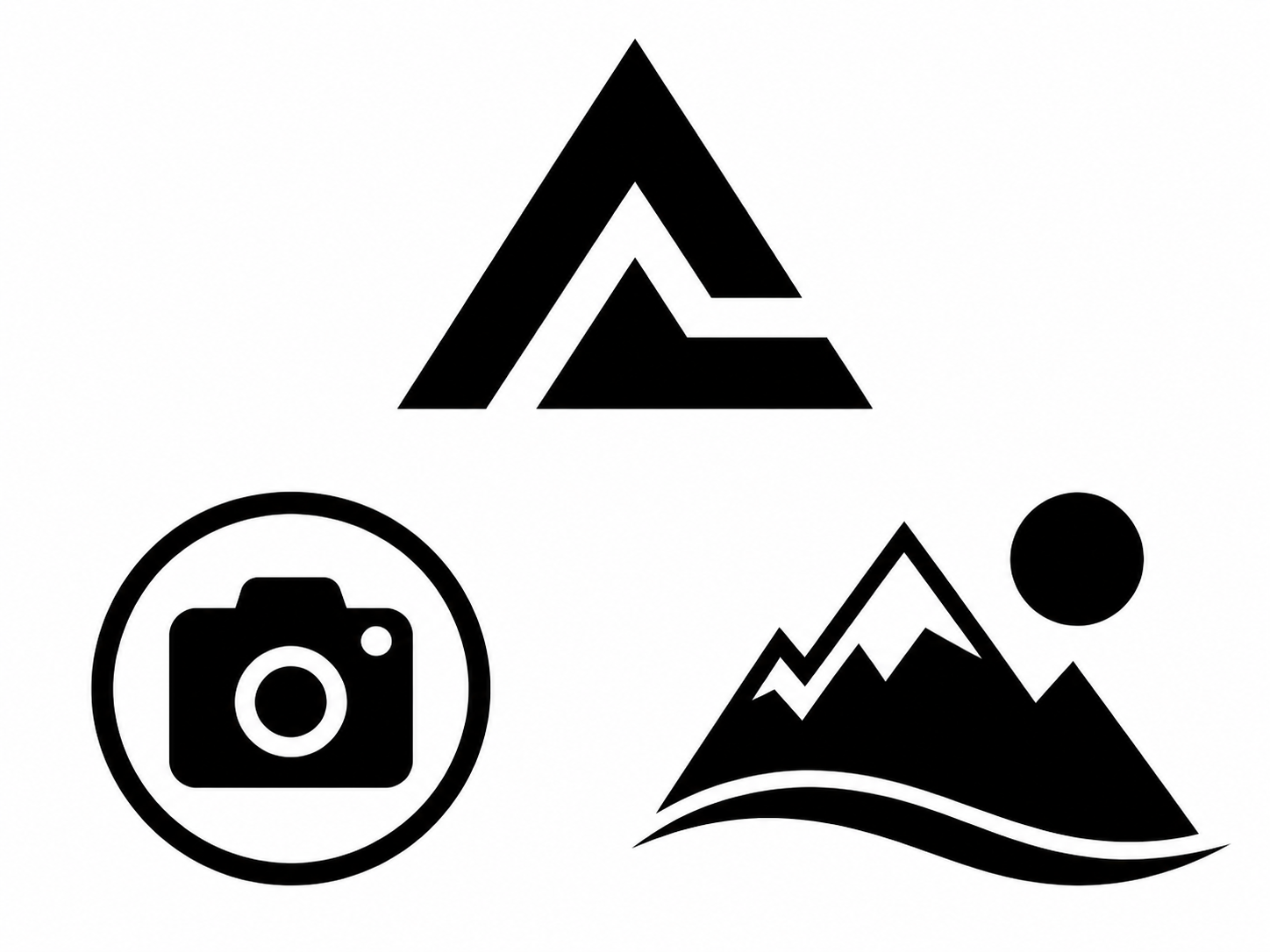
Logos and simple graphics
Bold shapes, plain backgrounds, and separated elements usually create fewer stray paths.
Upload a clean JPG, PNG, or WebP image, line drawing, logo, or diagram and turn its visible contours into a reviewable DXF draft. Check scale, curves, and closed shapes in your CAD software before manufacturing or production use.
The converter follows visible edges and turns them into vector paths. These examples illustrate typical results; your output depends on contrast, noise, and edge clarity.
Before you upload
The converter traces visible pixels into paths. This quick check prevents spending credits on images that need cleanup or a different workflow.
Use the right source
This tool is designed for visible outlines, not hidden geometry. Start with simple artwork and inspect the traced result before using it downstream.
Bold shapes, plain backgrounds, and separated elements usually create fewer stray paths.
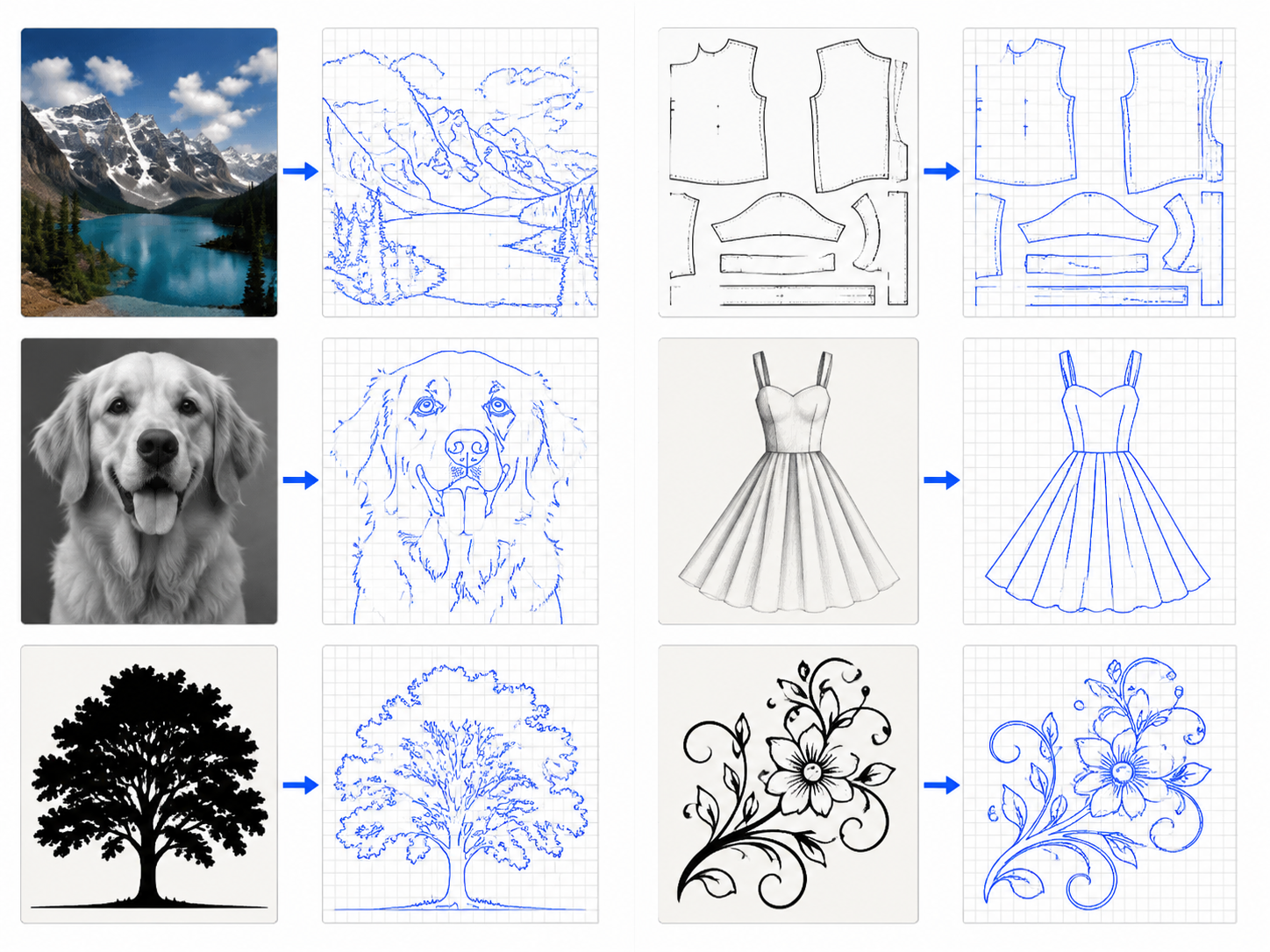
Clear edges can be traced, while texture, blur, and shadows may add unwanted contours.
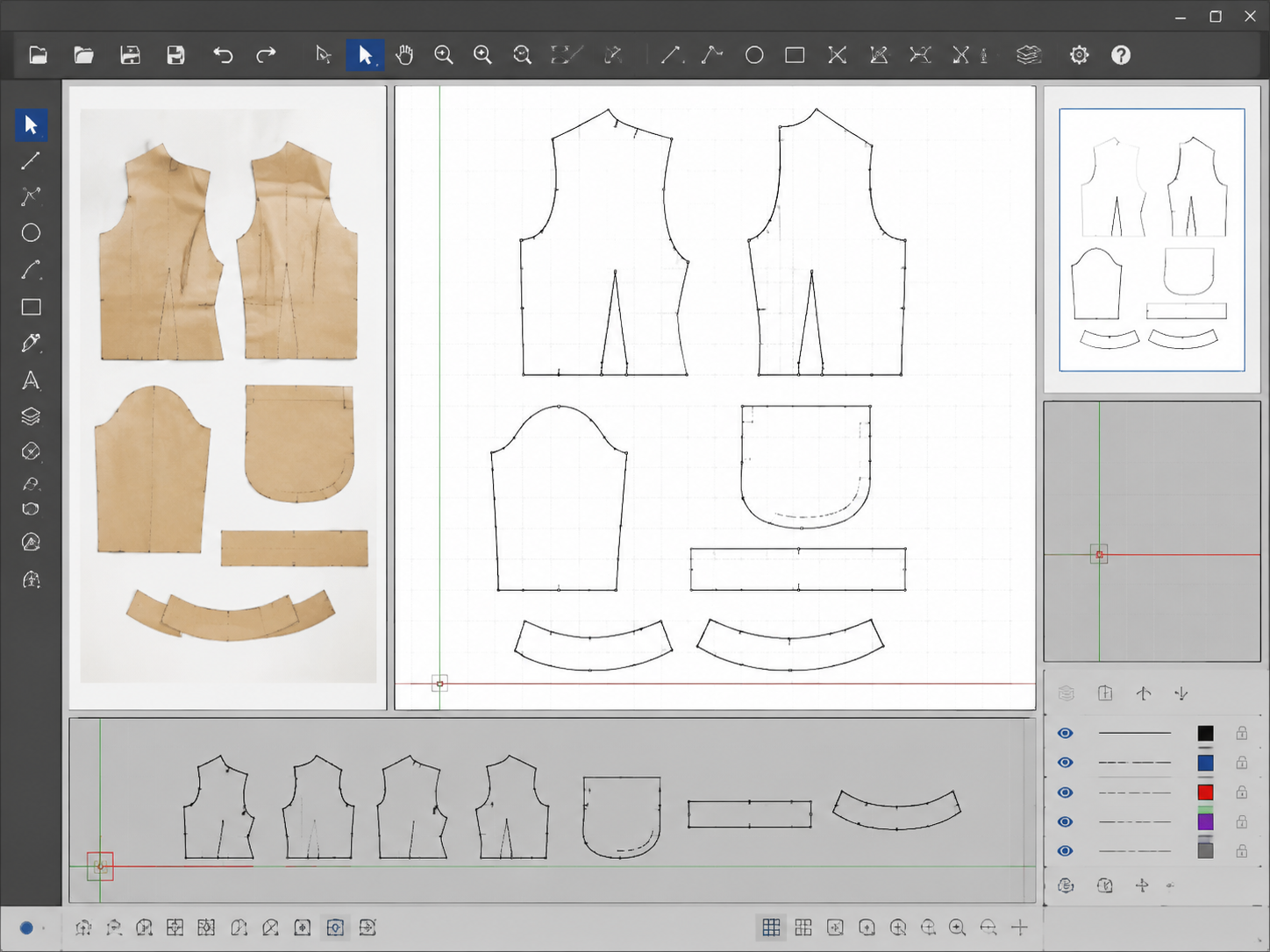
Open the DXF in your target software and check scale, curves, closed shapes, and small details.
Three steps
The preset stays fixed so the same source produces a consistent tracing workflow.
Choose a JPG, PNG, or WebP up to 10 MB. You can inspect the source preview before submitting.
The service converts the raster image to black-and-white paths and generates a real preview with the DXF.
Review the contour preview, download the DXF, then verify the drawing in your target CAD workflow.
The generic converter traces pixels into paths. It does not infer measurements, reconstruct hidden geometry, or turn a photo into a production-ready technical drawing.
Need real sewing-pattern dimensions? Use scan to ET DXFImage-to-DXF FAQ
Remove background clutter and strengthen the lines before tracing to DXF.
Use calibration and pattern-specific checks when physical dimensions matter.
Learn how raster tracing works and what to inspect after conversion.
Choose by input format
This general page supports JPG, PNG, and WebP. For the two highest-intent source formats or editable SVG paths, use the dedicated tool page so the upload guidance matches your task.